
Set up page |
No edit summary |
||
| Line 1: | Line 1: | ||
This page describes how to set up and use the GURaaS logging plugin | This page describes how to set up and use the GURaaS logging plugin for unity. | ||
<br /> | <br /> | ||
== installing the plugin == | ==installing the plugin== | ||
<br /> | <br /> | ||
# Download the plugin unity asset TODO: download link | #Download the plugin unity asset TODO: download link. | ||
# Import the plugin into unity (Assets -> Import Package -> Custom Package...) | #Import the plugin into unity (Assets -> Import Package -> Custom Package...). | ||
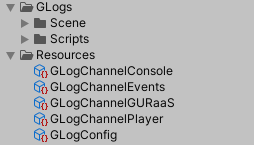
#Your project should now have the following additional assets:[[File:Imported plugin.png|none|thumb]] | |||
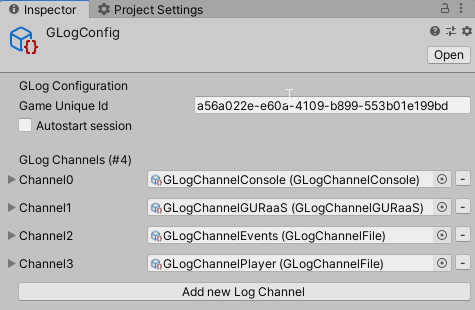
#Select the GLogConfig asset and set the Game Unique Id to the Id assigned to the game on the GURaaS portal.[[File:GLogConfig.png|none|thumb]][[File:Game Id on the portal.png|none|thumb|600x600px]] | |||
<br /> | <br /> | ||
== Your first log == | ==Your first log== | ||
<br /> | |||
Revision as of 09:41, 17 April 2020
This page describes how to set up and use the GURaaS logging plugin for unity.
installing the plugin
- Download the plugin unity asset TODO: download link.
- Import the plugin into unity (Assets -> Import Package -> Custom Package...).
- Your project should now have the following additional assets:
- Select the GLogConfig asset and set the Game Unique Id to the Id assigned to the game on the GURaaS portal.



Your first log